Use LLM Response Streaming for Voice Interactions
To provide a more natural and fluid experience in voice-based conversations, you can use the LlmStreamer internal integration. This allows the AI Agent to stream the model output in real-time rather than waiting for the full generation to complete.
Prerequisite
- Before you start, make sure you have an LLM resource set up in the Druid Portal. For more information, see Create LLM Resources.
Add LLM Streaming to a Run Agent Step
Follow these steps to enable LLM response streaming in your agentic flow:
- Open your agentic flow and click the Run Agent step.
- Scroll to the Post Actions section.
- Remove the existing LLM integration (if any configured).
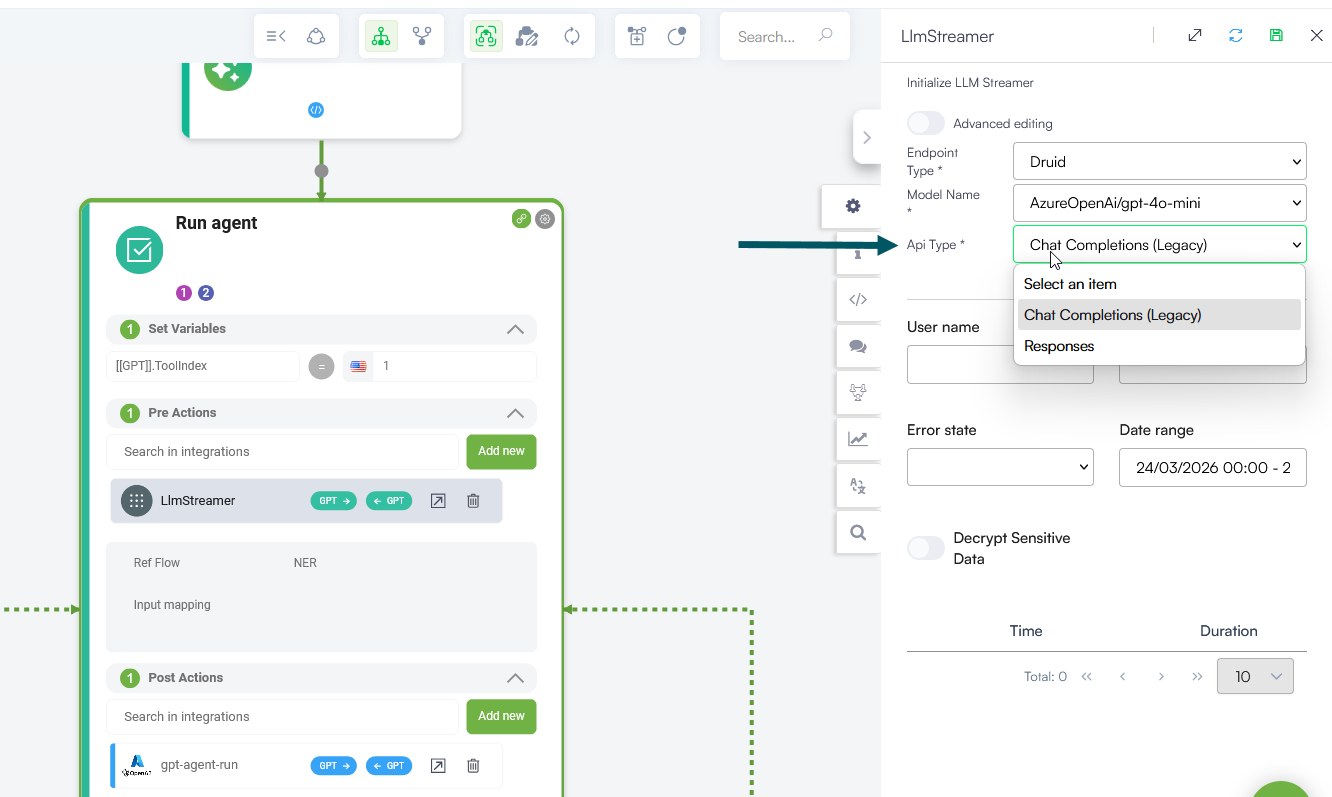
- Add the LlmStreamer internal action to your flow step.
- Click on the internal action and configure it as follows:
-
Reduce Connector Audit Logging: Enable this toggle to disable logging request and response payload data in the SQL database. Use this setting to optimize performance and save storage when dealing with large payloads.
- Endpoint Type: Select the provider (e.g., Druid).
- Model Name: Choose the specific model you wish to use from the dropdown.
- Api Type: This field appears dynamically when an Azure OpenAI model is selected (e.g., AzureOpenAi/gpt-4o-mini). Select one of the following:
- Responses Recommended for Azure OpenAI models. This is the preferred API for Azure OpenAI models, enabling better performance and more intelligent interactions.
- Chat Completions (Legacy): Use this for backward compatibility with existing configurations. Note that this endpoint is now considered legacy.
- Save the step and publish your flow.
Once enabled, your voice interactions start returning partial responses as they are generated. This helps your AI Agent react faster and makes conversations feel more fluid and natural.
Advanced Editing for Reasoning and Thinking Models
When selecting models that support extended thinking and reasoning capabilities (such as OpenAI GPT-5 series, Anthropic Opus 4.5+, Anthropic Sonnet 5 / 4.6, or OpenAI-OSS), saving the flow step exposes additional parameters under Advanced editing.
Configure Advanced Parameters
In the internal action configuration panel:
- Select the Endpoint Type and a Model name that supports reasoning.
- Save the step.
- Turn on the Advanced editing toggle at the top of the editor.
You can inspect or modify the underlying JSON payload.
JSON Payload Example
{
  "llmResource": "AzureOpenAI/gpt-5",
  "chunkDebounceMs": 0,
  "toolChoice": "",
  "maxTokens": null,
  "messagesCollection": "",
  "apiType": "2",
  "reasoningEffort": "low",
  "reasoningSummary": "auto",
  "reduceAuditLogs": false,
  "sendReasoningMessage": false
}
Advanced Parameter Reference
When using a model with reasoning and thinking capabilities, the following specific internal parameters can be set in JSON format:
toolChoice
Controls if and how the model uses tools or function calling during execution.
- empty string(""). Uses default model behavior (equivalent to "auto"). This the default value.
- auto. Default model behavior. The model evaluates the prompt and dynamically decides whether to call an external tool or respond with plain text.
- none. Disables tool usage for this execution step. The model cannot invoke any defined tools and must respond with plain text.
- required. Forces the model to call at least one available tool before returning a final response.
reasoningEffort
Controls the depth and duration of extended internal reasoning (thinking tokens) allocated prior to generating the final response. Default value: low.
- low. Minimizes thinking depth to prioritize lower latency and reduced token usage. Recommended for quick voice interactions.
- medium. Provides a balanced allocation of internal thinking effort for moderately complex logic without adding excessive delay.
- high. Allocates maximum reasoning tokens for deep analysis or complex tool/data transformations. Response times will be slower due to extended thinking depth.
- none. Completely turns off internal chain-of-thought reasoning, treating the request as standard non-reasoning generation.
reasoningSummary
Determines if and how a summary of the internal reasoning process (thinking steps) is generated and returned by the model API. Default value: auto.
- auto. Automatically lets the underlying model provider determine whether to generate and return a reasoning summary based on the context and model capability.
- concise. Requests a brief, high-level summary of the internal thinking process alongside the main response.
- detailed. Requests a full, thorough, step-by-step summary detailing how the model arrived at its conclusion.
- none. Explicitly suppresses the generation and return of any internal reasoning summary.
sendReasoningMessage
Determines whether the model's internal reasoning process (thinking steps) is sent to the client as real-time Informative Messages during active processing.
-
false (default). Internal reasoning steps are not sent as informative messages during the voice interaction.
-
true. Streams the model's active thinking process as temporary, real-time status updates (informative messages). This provides real-time operational feedback to keep the interaction responsive while waiting for the model to finish generating the final synthesized response.